

Build 10x products in minutes by chatting with AI - beyond just a prototype.
An HTML Cheat Sheet is an essential reference document that summarizes key HTML elements, attributes, and syntax, making it easier for web developers to create websites efficiently.
HTML, or Hypertext Markup Language, is the foundational language used to create and structure content on the web. It consists of a series of elements and tags that define the layout and format of a web page. Each HTML document is structured using a set of predefined tags such as <html>, <head>, and <body>, which organize the content and metadata of the page.
A basic HTML document is structured with essential elements that define the content and metadata of the web page. Here is an overview of these fundamental components:
The <!DOCTYPE html> declaration must be the very first thing in your HTML document. It tells the browser to render the page in standards mode, ensuring that the HTML and CSS behave consistently across different browsers.
<!DOCTYPE html> <html lang="en"> <head> <meta charset="UTF-8"> <title>Sample Page</title> </head> <body> <h1>Welcome to My Website</h1> <p>This is a paragraph of text on my web page.</p> </body> </html>
The <html> element wraps all the content of the web page. This element is also known as the root element. It typically includes the lang attribute to specify the language of the document:
<html lang="en">
The <head> element contains meta-information about the document, such as its title, character set, styles, scripts, and other meta tags:
<head> <meta charset="UTF-8"> <title>Sample Page</title> </head>
The <body> element includes all the content of the HTML document, such as text, images, links, and other media:
<body> <h1>Welcome to My Website</h1> <p>This is a paragraph of text on my web page.</p> </body>
The html lang attribute specifies the language of the content in the HTML document. This helps search engines and browsers to render the text correctly and is important for accessibility:
<html lang="en">
Meta tags provide metadata about the HTML document, which is used by browsers and search engines. The term 'meta tag' refers to additional material about the HTML. Here are some important meta tags:
The <meta charset="UTF-8"> tag specifies the character encoding for the HTML document, ensuring that it can display any character correctly:
<meta charset="UTF-8">
Meta name tags provide metadata such as descriptions, keywords, and author information, which are useful for search engines:
<meta name="description" content="A brief description of the page content"> <meta name="keywords" content="HTML, CSS, JavaScript"> <meta name="author" content="Your Name">
The meta http-equiv tag provides HTTP headers to the browser, such as page refreshes and character sets:
<meta http-equiv="X-UA-Compatible" content="IE=edge"> <meta http-equiv="refresh" content="30">
The meta name="viewport" tag controls the layout on mobile browsers, ensuring the page is responsive:
These tags and elements collectively ensure that your HTML document is well-structured, accessible, and optimized for both search engines and users.
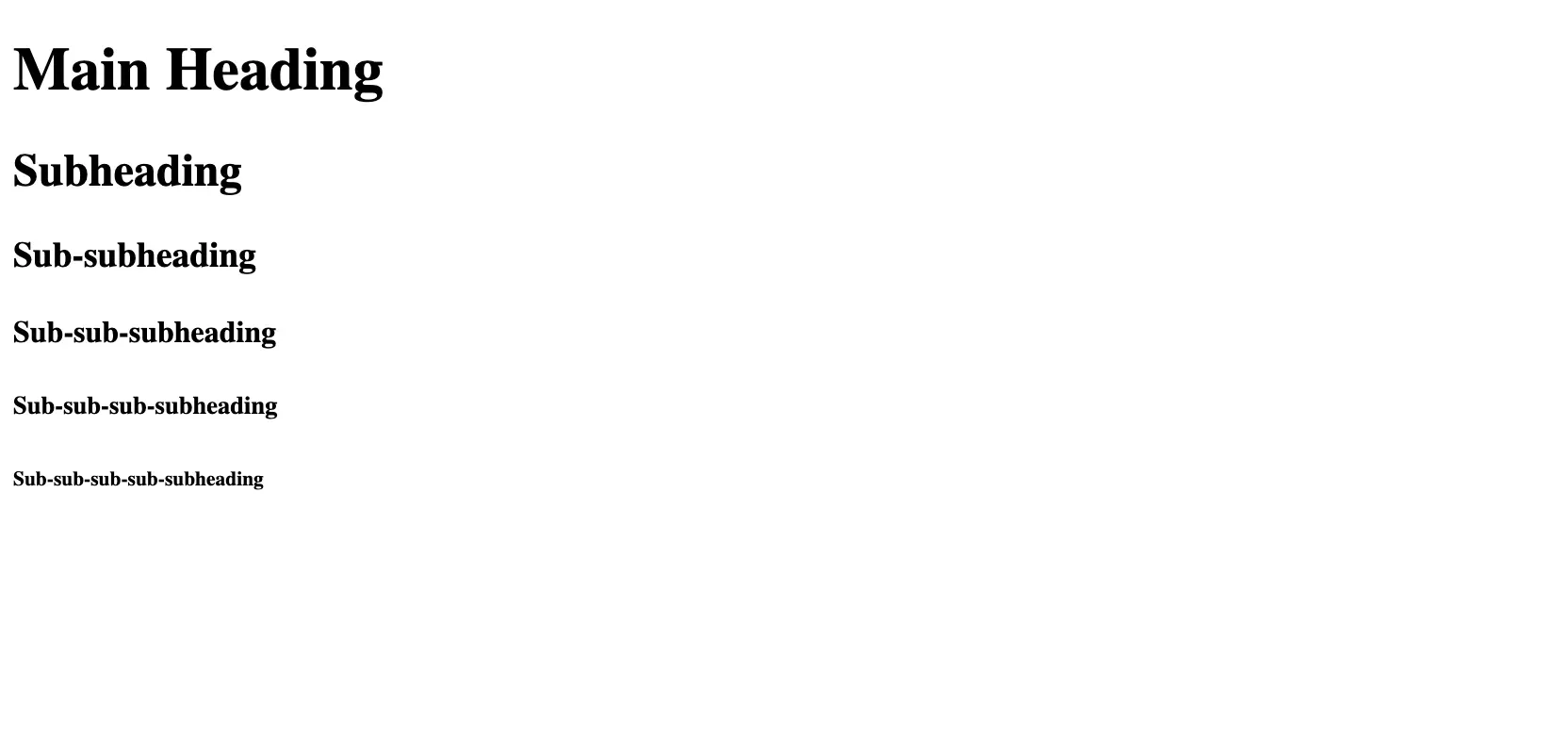
Headings are used to create titles and subtitles within the content. HTML provides six levels of headings, being the highest level and the lowest:
The tag is used to define paragraphs of text in an HTML document:
The tag is an empty element used to insert a line break within text:
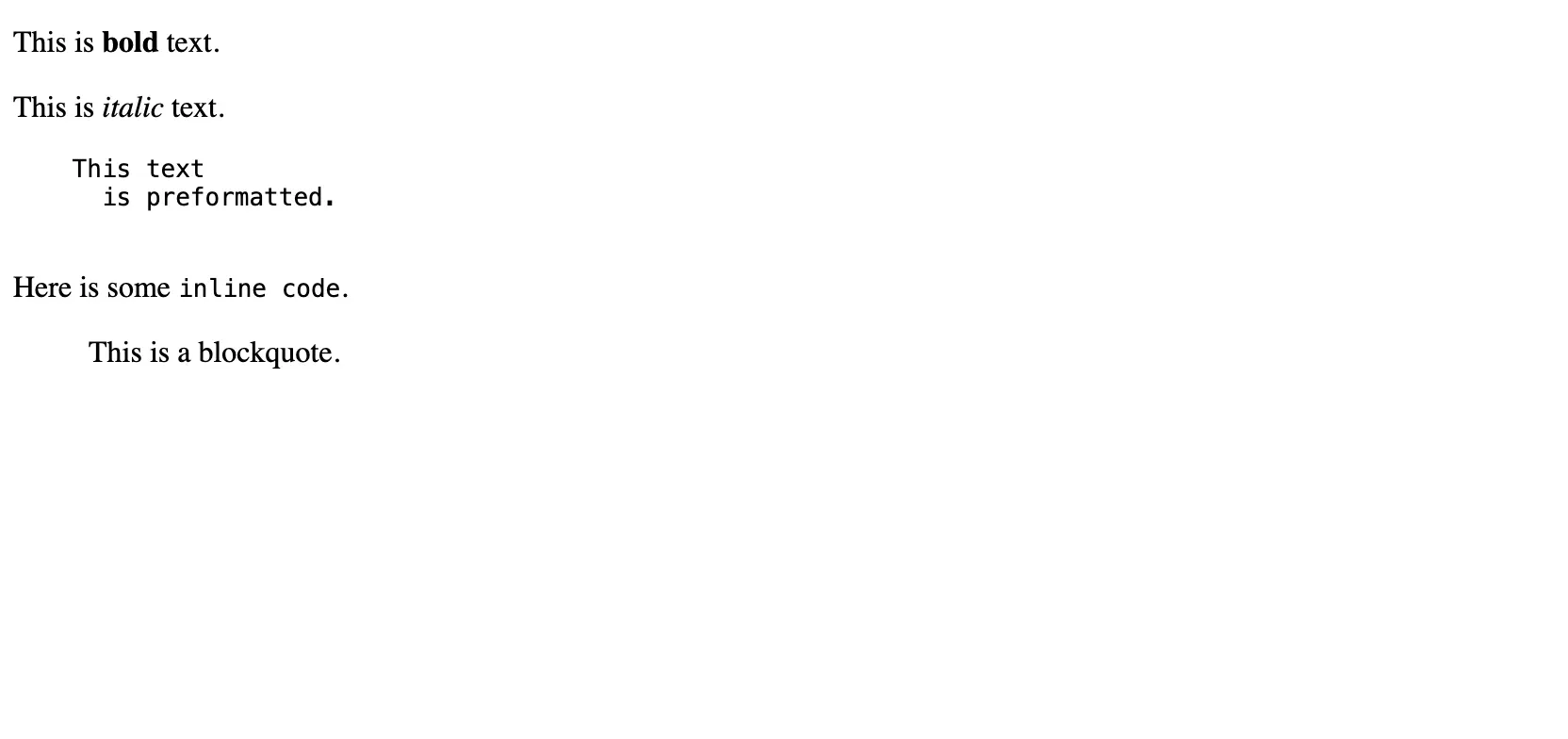
The tag makes text bold:
The tag makes text italic:
The tag is used to display pre formatted text, preserving both spaces and line breaks:
The tag is used to define a piece of computer code:
The tag is used to define a section that is quoted from another source:
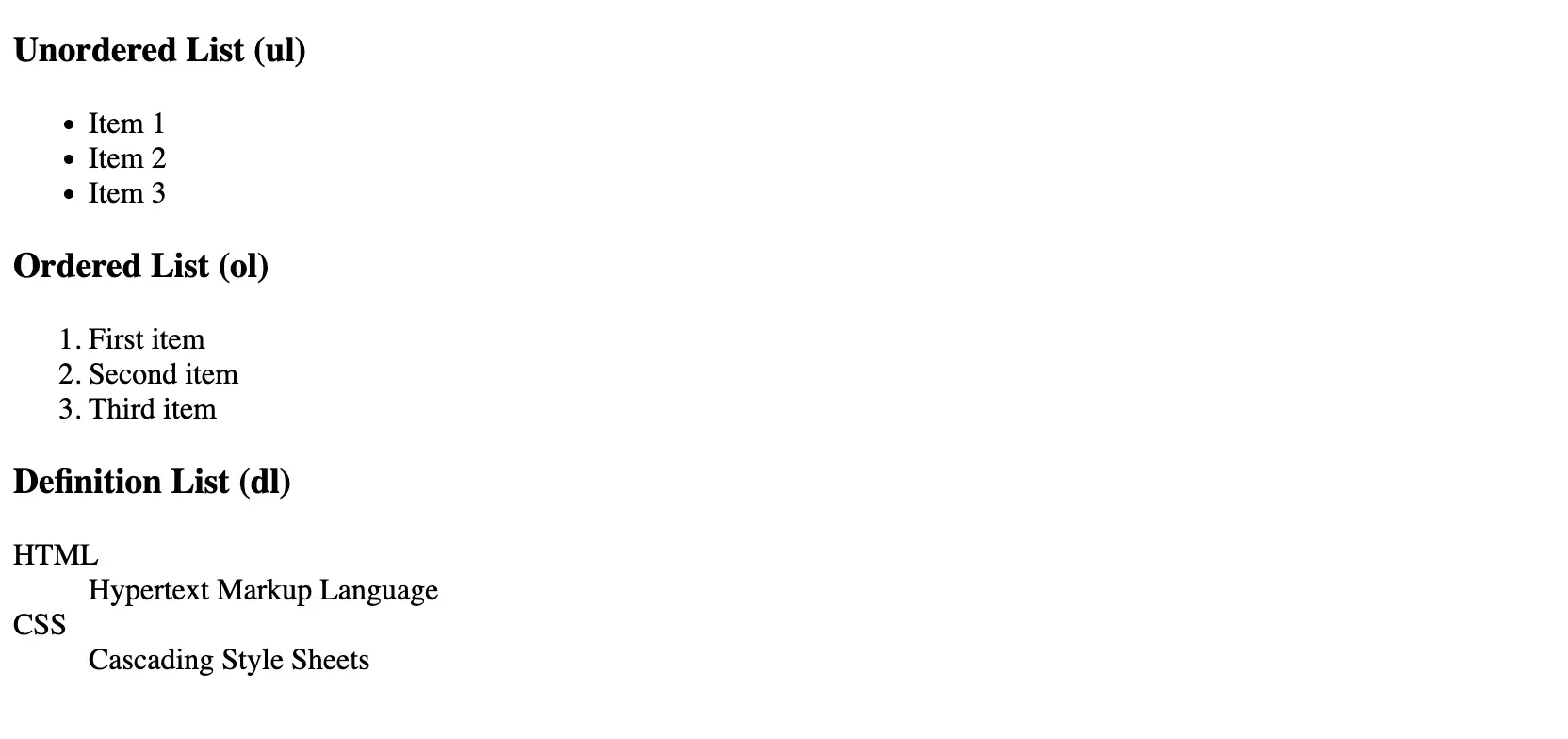
The tag defines an unordered list, which is a bulleted list:
The tag defines an ordered list, which is a numbered list:
The tag is used to create a list of definitions:
The tag defines a hyperlink, which is used to link from one page to another:
Navigation links are typically created using the tag within a navigation bar:
These basic HTML tags and elements are fundamental building blocks for creating structured, well-formatted web pages.
The tag is used to embed images in an HTML document. The src attribute specifies the path to the image file:
In this example, the src attribute points to "image.jpg". This could be a relative path or an absolute URL.
The alt attribute provides alternative text for the image if it cannot be displayed. It is also crucial for accessibility, as it allows screen readers to describe the image to visually impaired users:
Providing descriptive alternate text enhances the usability and accessibility of web pages.
The tag is used to embed sound content in an HTML document. The src attribute specifies the path to the audio file. The controls attribute adds audio controls like play, pause, and volume:
You can also include multiple sources using the element to provide different formats for better compatibility:
The tag is used to embed video content. Like the tag, it includes the controls attribute for play, pause, and volume controls:
Multiple sources can be provided for better browser support using the element:
The element is used within and tags to specify multiple media resources. Each element includes a src attribute that defines the file path and a type attribute that defines the media type:
By including multiple sources, you ensure that your media files are compatible with different browsers and devices.
Tables in HTML are created using the element. Within this element, you define rows using , header cells using , and data cells using . Here’s a breakdown of the basic structure:
The tag defines a row in the table. Each table row can contain one or more or elements:
The tag is used to define a header cell in a table, which is typically displayed as bold and centered text. Header cells are important for providing context to the table data:
The tag provides a title or description for the table. It is placed directly after the opening tag:
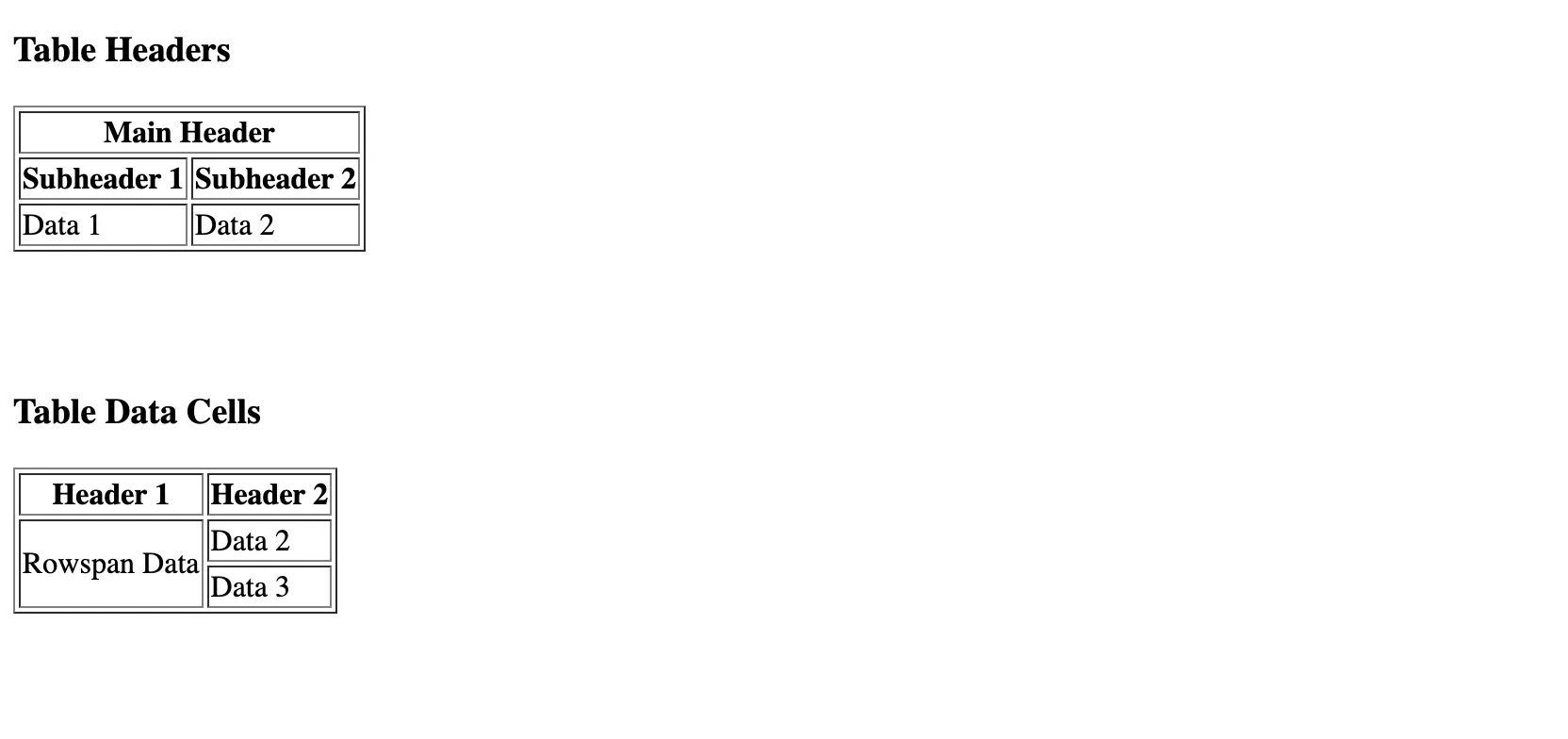
Table headers can span multiple columns or rows using the colspan and rowspan attributes, respectively:
In this example, the first row's header cell spans two columns.
The tag defines a standard data cell in the table. These cells can also use the colspan and rowspan attributes to span multiple columns or rows:
Here, the first data cell in the second row spans two rows, merging the cells below it.
Forms are essential for collecting user input on web pages. The element is used to create a form in HTML. It can contain various types of input elements and controls.
The action attribute of the tag specifies the URL where the form data should be sent when the form is submitted:
HTML forms support a variety of input types to capture different types of data from users. Some common input types include:
These input types ensure that the data collected is appropriate for the intended purpose.
An input field is created using the tag. Each input field can have various attributes such as type, name, placeholder, and value to define its behavior and appearance:
The name attribute of an input element specifies the name of the form control. When the form is submitted, the data entered into the input field is sent as a name-value pair:
Buttons and labels are used to interact with form elements. The tag creates a clickable button, and the tag is used to define labels for form elements, improving accessibility:
Using the for attribute in the tag links it to a specific form element, making it easier for users to click and access the input field.
Checkboxes and radio buttons allow users to select one or more options from a set. The type attribute is set to checkbox for checkboxes and radio for radio buttons:
Checkboxes allow multiple selections, while radio buttons limit the selection to one option within a group.
Inline styles are used to apply a unique style to a single HTML element. To use inline styles, you add the style attribute directly to the HTML tag. This method is useful for quick, one-off changes but is not recommended for larger projects due to its lack of reusability and separation of concerns.
The style attribute is used to add CSS properties directly to an HTML element. Multiple CSS properties are separated by semicolons:
The text-align property is used to set the horizontal alignment of text within an element. It can be set to left, right, center, or justify:
The background property is used to set the background color or image of an HTML element, such as the element. This can enhance the visual appeal of the web page:
External CSS involves linking a separate CSS file to an HTML document. This method is preferred for maintaining larger websites as it allows for centralized and reusable style definitions.
The tag is used to link an external CSS file to an HTML document. The rel attribute specifies the relationship between the current document and the linked file, which is typically set to "stylesheet". The href attribute specifies the path to the CSS file:
This approach keeps the HTML clean and allows for consistent styling across multiple pages by editing a single CSS file.
Meta tags are crucial for search engine optimization (SEO) and ensuring compatibility with different browsers and devices. Here are some important meta tags:
The meta name="viewport" tag is essential for responsive web design. It controls the layout on mobile browsers and ensures that web pages render correctly on different devices. This tag sets the viewport's width to the device's width and the initial scale to 1.0:
This tag helps create a better user experience by making the web page adaptable to various screen sizes.
The meta http-equiv="X-UA-Compatible" tag is used to specify the document mode for Internet Explorer, which can help in rendering the web page correctly in different versions of IE:
Using this tag ensures that the latest rendering engine is used, which can help avoid compatibility issues with older versions of Internet Explorer.
HTML5 introduced several semantic elements that provide more meaningful structure to web pages. These elements help both developers and browsers understand the content's structure and hierarchy better.
These elements are used to define different parts of a web page:
: Represents introductory content, typically containing navigation links, logos, or headings.
: Contains footer content, such as copyright information or links to privacy policies.
: Denotes the main content of the document, unique to the document, and must not contain content that is repeated across pages.
: Defines sections within the document, such as chapters, headers, footers, or any other sections of content.
Example:
These elements provide additional structure to web pages:
: Represents a self-contained composition in a document, page, or site, such as a blog post or news article.
: Contains content that is tangentially related to the main content, such as sidebars or call-out boxes.
: Defines a section of navigation links.
Example:
These semantic elements enhance the readability of the code and improve accessibility by providing meaningful landmarks for screen readers and other assistive technologies.
The and tags are fundamental container tags in HTML, used to group elements for styling and scripting purposes. They do not inherently convey any meaning but are extremely versatile for layout and styling.
Multiple container tags can be nested or used in combination to create complex layouts and styles. For example, using a combination of and elements:
Empty elements, also known as self-closing tags, do not have closing tags and do not contain any content. Examples include for line breaks, for images, and for horizontal rules. These elements are useful for adding structural elements without content.
The id attribute is used to assign a unique identifier to an HTML element. This identifier must be unique within the document, making it useful for targeting elements with CSS and JavaScript:
You can target this element in CSS and JavaScript:
The class attribute is used to assign one or more class names to an HTML element. Unlike the id attribute, class names do not have to be unique and can be used on multiple elements. This makes classes ideal for applying the same styles to multiple elements:
You can target these elements in CSS:
In JavaScript:
Using id and class attributes effectively helps organize and manipulate HTML elements, providing flexibility and control over web page design and functionality.
In this HTML cheat sheet, we covered the essential elements and attributes that form the foundation of web development, from basic document structure and text formatting to multimedia elements, tables, forms, and CSS styling. We also explored advanced HTML elements and best practices for creating accessible and responsive web pages. Continuous learning and staying updated with the latest HTML developments is crucial for improving your skills, leveraging new features, and following best practices to create high-quality, maintainable web content.
Using a cheat sheet can significantly speed up the web development process by providing quick access to commonly used HTML tags and their functionalities.
<h1><h6><p><br><b><i><pre><code><blockquote><ul><ol><dl><a><a><img><audio><source><video><audio><source><source><audio><video><source><table><tr><th><td><tr><th><td><th><caption><table><td><form><form><input><button><label><label><body><link><header><footer><main><section><article><aside><nav><div><span><div><span><div><span><br><img><hr><meta name="viewport" content="width=device-width, initial-scale=1.0"><h1>Main Heading</h1>
<h2>Subheading</h2>
<h3>Sub-subheading</h3>
<h4>Sub-sub-subheading</h4>
<h5>Sub-sub-sub-subheading</h5>
<h6>Sub-sub-sub-sub-subheading</h6><p>This is a paragraph of text.</p><p>This is a line of text.<br>This is another line of text.</p><p>This is <b>bold</b> text.</p><p>This is <i>italic</i> text.</p><pre>
This text
is preformatted.
</pre><p>Here is some <code>inline code</code>.</p><blockquote>
This is a blockquote.
</blockquote><ul>
<li>Item 1</li>
<li>Item 2</li>
<li>Item 3</li>
</ul><ol>
<li>First item</li>
<li>Second item</li>
<li>Third item</li>
</ol><dl>
<dt>HTML</dt>
<dd>Hypertext Markup Language</dd>
<dt>CSS</dt>
<dd>Cascading Style Sheets</dd>
</dl><a href="https://www.example.com">Visit Example.com</a><nav>
<a href="home.html">Home</a>
<a href="about.html">About</a>
<a href="contact.html">Contact</a>
</nav><img src="image.jpg" alt="Description of the image"><img src="image.jpg" alt="A beautiful sunrise over the mountains"><audio src="audio.mp3" controls>
Your browser does not support the audio element.
</audio><audio controls>
<source src="audio.mp3" type="audio/mpeg">
<source src="audio.ogg" type="audio/ogg">
Your browser does not support the audio element.
</audio><video src="video.mp4" controls>
Your browser does not support the video tag.
</video><video controls>
<source src="video.mp4" type="video/mp4">
<source src="video.ogg" type="video/ogg">
Your browser does not support the video tag.
</video><video controls>
<source src="movie.mp4" type="video/mp4">
<source src="movie.ogg" type="video/ogg">
Your browser does not support the video tag.
</video><table>
<tr>
  <th>Header 1</th>
  <th>Header 2</th>
</tr>
<tr>
<td>Data 1</td>
<td>Data 2</td>
</tr>
</table><tr>
<th>Header 1</th>
<th>Header 2</th>
</tr><table>
<caption>Monthly Sales Data</caption>
<tr>
<th>Month</th>
<th>Sales</th>
</tr>
<tr>
<td>January</td>
<td>$10,000</td>
</tr>
</table><table border="1">
<tr>
<th colspan="2">Main Header</th>
</tr>
<tr>
<th>Subheader 1</th>
<th>Subheader 2</th>
</tr>
<tr>
<td>Data 1</td>
<td>Data 2</td>
</tr>
</table><table border="1">
<tr>
<th>Header 1</th>
<th>Header 2</th>
</tr>
<tr>
<td rowspan="2">Rowspan Data</td>
<td>Data 2</td>
</tr>
<tr>
<td>Data 3</td>
</tr>
</table><form action="submit_form.php" method="post">
<!-- form elements go here -->
</form><input type="text" name="username" placeholder="Enter your username">
<input type="password" name="password" placeholder="Enter your password">
<input type="email" name="email" placeholder="Enter your email">
<input type="number" name="age" placeholder="Enter your age">
<input type="submit" value="Submit"><input type="text" name="firstname" placeholder="First Name">
<input type="text" name="lastname" placeholder="Last Name"><input type="text" name="username" placeholder="Username">
<input type="password" name="password" placeholder="Password"><form>
<label for="username">Username:</label>
<input type="text" id="username" name="username">
<button type="submit">Submit</button>
</form><form>
<label for="subscribe">Subscribe to newsletter:</label>
<input type="checkbox" id="subscribe" name="subscribe" value="yes">
<p>Select your gender:</p>
<input type="radio" id="male" name="gender" value="male">
<label for="male">Male</label>
<input type="radio" id="female" name="gender" value="female">
<label for="female">Female</label>
</form><p style="color: blue; font-size: 20px;">This is a styled paragraph.</p><p style="text-align: center;">This text is centered.</p><body style="background-color: lightgray;">
<h1>Welcome to My Website</h1>
</body><head>
<link rel="stylesheet" href="styles.css">
</head><meta name="viewport" content="width=device-width, initial-scale=1.0"><meta http-equiv="X-UA-Compatible" content="IE=edge"><header>
<h1>Website Title</h1>
<nav>
<a href="#home">Home</a>
<a href="#about">About</a>
<a href="#contact">Contact</a>
</nav>
</header>
<main>
<section>
<h2>Section Title</h2>
<p>This is a section of the main content.</p>
</section>
</main>
<footer>
<p>© 2024 Your Website</p>
</footer><article>
<h2>Article Title</h2>
<p>This is the main content of the article.</p>
</article>
<aside>
<h3>Related Links</h3>
<ul>
<li><a href="#link1">Link 1</a></li>
<li><a href="#link2">Link 2</a></li>
</ul>
</aside>
<nav>
<ul>
<li><a href="#home">Home</a></li>
<li><a href="#about">About</a></li>
<li><a href="#services">Services</a></li>
</ul>
</nav><div class="container">
<h2>Title</h2>
<p>This is a paragraph inside a div.</p>
</div><p>This is a <span class="highlight">highlighted</span> word in a paragraph.</p><div class="content">
<h2>Article Title</h2>
<p>This is an article. <span class="author">Author Name</span></p>
<div class="comments">
<p>Comment 1</p>
<p>Comment 2</p>
</div>
</div><p>This is a paragraph with a line break.<br>Here is the text after the line break.</p>
<img src="image.jpg" alt="An example image">
<hr><p id="unique-paragraph">This paragraph has a unique id.</p>#unique-paragraph {
color: blue;
}document.getElementById("unique-paragraph").style.fontSize = "20px";<p class="highlight">This is a highlighted paragraph.</p>
<p class="highlight">This is another highlighted paragraph.</p>.highlight {
background-color: yellow;
}let elements = document.getElementsByClassName("highlight");
for (let i = 0; i < elements.length; i++) {
elements[i].style.border = "1px solid red";
}