

Build 10x products in minutes by chatting with AI - beyond just a prototype.
Topics
Which browser supports speech recognition best?
Is speech recognition free for websites?
Can speech recognition convert recorded audio files?
Can speech recognition support multiple languages?
How can websites understand spoken commands? This blog explains how to add speech recognition to your site, covering APIs, browser compatibility, setup steps, and tips for reliable voice interaction.
Can your website understand what users say instead of what they type?
Yes, it can. A modern website can listen to speech through a microphone and convert it into text using tools like the Web Speech API and a speech-to-text API.
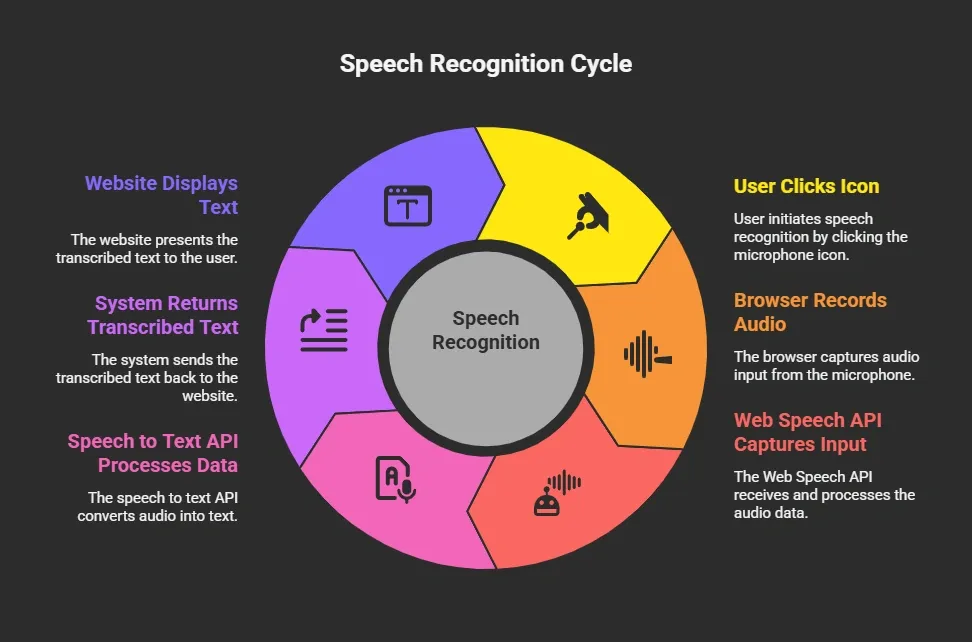
In simple terms, the browser captures audio, sends it to a recognition service, and then displays the transcribed text on the screen.
Voice technology is growing rapidly. According to Google , about 27% of the global online population uses voice search on mobile devices.
So adding speech features to a website is becoming common. It helps users interact with a web page more naturally by speaking rather than typing.
Now let’s go step by step and look at how to build this feature.
Speech recognition is the process of converting spoken audio into readable text. When a user speaks into a microphone, the browser captures the audio and sends it to a recognition system.
Then the system analyzes the audio data and returns the recognized text.
Behind the scenes, machine learning models analyze voice patterns. These models compare the audio signal with trained voice data and language models to detect words and phrases.
Most modern browsers support speech recognition, especially Google Chrome.
Typing works well in many situations, but speaking is often faster. This is especially true on mobile devices.
Speech recognition adds several useful features to websites.
Some common benefits include:
Companies also use speech recognition in customer support apps and meeting transcription tools.
Google has invested heavily in voice technology, and these tools are now available for developers building web apps.
Before you add speech recognition to a website, you need a few basic tools.
| Tool | Purpose |
|---|---|
| Web Speech API | Captures speech input in the browser |
| Speech to Text API | Converts audio into text |
| JavaScript | Controls recognition events |
| Microphone | Records speech |
| Google Chrome | Best browser compatibility |
These tools allow developers to create voice-powered web applications without complicated infrastructure.
The Web Speech API includes two main features.
Speech recognition converts speech into text.
Speech synthesis converts text into spoken audio.
When a user begins speaking, the browser records the audio and sends it for processing. The recognition system analyzes the audio and returns the text result.
In Google Chrome, the Web Speech API often runs through x-webkit-speech.
This implementation connects the browser to Google speech recognition services. The browser sends the audio for processing and receives recognized text in return.
A speech-to-text API performs the main conversion from speech to text. These APIs analyze audio signals and produce readable text.
Most speech recognition systems rely on machine learning models trained with huge datasets of voice recordings.
Speech-to-text services can process:
Common uses for speech-to-text include:
Google speech services are widely used because they support many languages and offer strong recognition accuracy.
Now let’s go through the practical steps.
Start by adding a microphone icon or button to your web page. This gives users a clear way to start speaking.
Example HTML form:
1 2<button id="startBtn">🎤 Start</button> <textarea id="output"></textarea>
This simple form contains:
Adding a visible microphone icon makes the interface easier to understand.
Next, add a JavaScript script to connect your web page to the Web Speech API.
Example code:
1 2 3 4 5 6 7 8 9 10 11 12 13 14 15const SpeechRecognition = window.SpeechRecognition || window.webkitSpeechRecognition; const recognition = new SpeechRecognition(); recognition.lang = "en-US"; recognition.continuous = false; recognition.interimResults = false; document.getElementById("startBtn").onclick = function() { recognition.start(); }; recognition.onresult = function(event) { const text = event.results[0][0].transcript; document.getElementById("output").value = text; };
This script performs several tasks:
The browser handles most of the heavy processing.
Next, the browser will request permission to access the microphone.
This is required before recording audio.
If permission is denied or blocked, speech recognition cannot start.
You can also handle errors in your script.
Example error handling:
1 2 3recognition.onerror = function(event) { console.log("Recognition error:", event.error); };
Handling errors lets your web app display helpful messages when something goes wrong.
Another useful feature is displaying results as the user speaks.
To enable this, set:
interimResults = true
This allows the browser to return temporary phrases during speech processing.
The text updates gradually as the user speaks.
When the user stops speaking, the final text string replaces the temporary output.
This feature works well in:
Many speech recognition systems support multiple languages.
You can change the recognition language with one simple setting.
Example:
1recognition.lang = "en-US";
Common languages supported include:
Google speech recognition supports dozens of languages and dialects.
So websites that serve international users can easily accept speech input from different regions.
Some applications process recorded audio rather than live speech.
For example, a web app might convert an uploaded audio file into text.
The process usually works like this:
Many speech APIs also include speaker diarization.
Speaker diarization helps identify different speakers in the same recording.
For example:
The system labels each speaker and separates their phrases.
Speaker diarization is useful for:
Speech recognition also allows websites to accept voice commands.
Users can control parts of a web app by speaking specific phrases.
Example commands include:
Example JavaScript logic:
1 2 3 4 5 6 7recognition.onresult = function(event) { const command = event.results[0][0].transcript.toLowerCase(); if(command.includes("play video")){ document.getElementById("video").play(); } };
This code listens for the phrase "play video". When detected, the video element begins playing.
Voice control can make websites more interactive and easier to use.
Speech recognition does not work equally across all browsers.
Google Chrome currently offers the strongest support.
| Browser | Speech Recognition Support |
|---|---|
| Google Chrome | Full support |
| Chrome Android | Good support |
| Edge | Partial support |
| Firefox | Limited support |
| Safari | Limited support |
Many developers test speech features in Chrome first and then add fallback options for other browsers.
Speech recognition works best when the audio quality is clear.
Here are a few practical tips.
To improve results:
Short commands tend to produce more accurate recognition results.
Testing also helps identify problems related to accents or noisy environments.
Speech recognition appears in many types of web applications.
Some common examples include:
Speech-to-text technology allows websites to process spoken data quickly and convert it into readable text.
Developers frequently discuss their experience using speech recognition tools online.
One Reddit developer shared this comment about the Web Speech API:
“Web Speech API works great for quick browser speech input. Chrome handles it well, but always add error handling because recognition can stop unexpectedly.”
This advice highlights an important lesson.
When building speech recognition features, always handle recognition events and possible errors inside your script.
Building a web app with speech recognition can take time if you start from scratch. Platforms like Rocket.new help simplify development.
Rocket.new is an AI-powered development platform designed to help developers create web applications faster.
The platform includes tools that simplify API connections, form creation, and application data management. This makes it easier to connect a speech-to-text API and process speech input in a web app.
Key features include:
Some useful project ideas include:
Since Rocket.new manages the application structure and data flow, developers can focus more on speech features rather than on infrastructure setup.
Testing helps confirm that the speech recognition system works correctly.
During testing you should:
Testing improves reliability and helps detect recognition errors early.
Voice input involves collecting audio data from users, so privacy should always be considered.
Some good practices include:
These steps help maintain trust between the website and its users.
Learning how to add speech recognition to your website lets users interact with web applications more naturally. With the Web Speech API, a speech to text api, and a few lines of JavaScript code, websites can capture speech input, convert audio into text, and respond to spoken phrases. When the browser, microphone, and recognition service work together, voice interaction becomes a smooth and useful part of the user experience.> How can websites understand spoken commands? This blog explains how to add speech recognition to your site, covering APIs, browser compatibility, setup steps, and tips for reliable voice interaction.